Permissions allow SharePoint users to perform certain actions, such as edit items in a list or create a site. But you can’t assign individual permissions to individual users in SharePoint. Instead, you group related permissions together into a permission level. Then you assign that permission level to a SharePoint group.
Each site collection has its own set of permission levels. SharePoint comes with some default permission levels that you can use, such as Contribute and View Only. But if one of those doesn’t meet your needs, you can create a new permissions level. It’s a best practice that you don’t change the default permission levels.
Permissions Levels page
You create and make changes to permission levels on the Permissions Levels page.
To create or make changes to permission levels, you must belong to a SharePoint group that includes the permission to Manage Permissions. By default, you have this permission if you belong to the Owners group or if you are a Site Collection Administrator.
To open the Permissions Levels page
- On the top-level site of the site collection, click Settings
 > Site Settings.
 - On the Site Settings page, in the Users and Permissions section, choose Site permissions.
- On the Permissions tab, in the Manage group, choose Permission Levels..
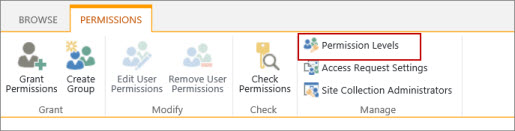
You can make changes to any of the listed permissions levels, except Full Control and Limited Access.
Create a permission level
It’s simple to create a new permission level. You just provide a name and description, and then you choose which permissions to include in the permission level.
To create a permission level
- On the Permission Levels page, choose Add a Permission Level.
- On the Add a Permission Level page provide the name and the description.
- In the Permissionsarea, select the check boxes next to the list, site, and personal permissions that you want this permission level to include..
- Click Create.
After you create the permission level, assign it to a SharePoint group.
Create a permission level by copying an existing permission level
A quick way to create a new permission level is to make a copy of an existing permission level. You might want to do this when the existing permission level has permissions similar to what the new permission level will have. After you make the copy, you can add or remove the permissions you need the new permission level to have.
To copy a permission level
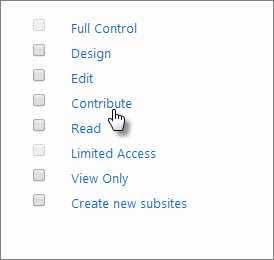
- On the Permission Levels page, click the name of the permission level that you want to copy. Be sure to click the link; do not select the checkbox next to the name. For example, Contribute, as shown in the following figure.
- On the Edit Permission Level page, choose Copy Permission Level, which is at the bottom of the page after the Personal Permissions section.
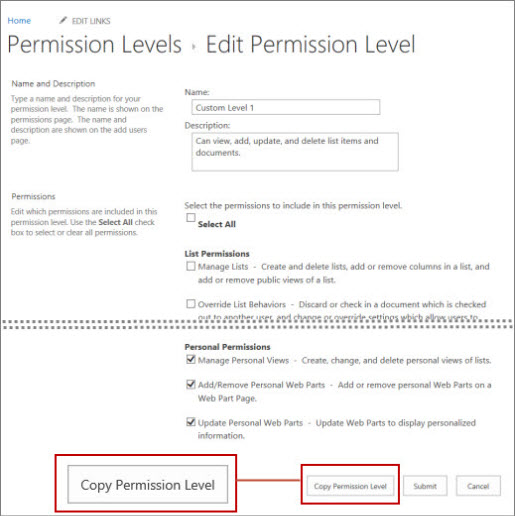
- On the Copy Permission Level page, type a name and description for the new permission level.
- Choose which permissions you want to add or remove, and then choose Create
After you create the permission level, assign it to a SharePoint group.
Make changes to a permission level
You can make the following changes to a permission level:
- Update the name or description
- Add or remove permissions
We recommend that you don’t make any changes to the default permission levels that come with SharePoint. You can’t make changes to the Full Control and Limited Access default permission levels.
To make changes to a permission level
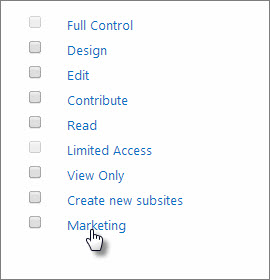
- On the Permission Levels page, click the name of the permission level you want to edit. Be sure to click the link; do not select the checkbox next to the name. For example, Marketing, as shown in the following figure.
- On Edit Permission Level page you can:
- Change the description.
- Add or remove permissions to the level.
- After you have made you changes, click Submit.
You can delete any permission level, except for Full Control and Limited Access. We don’t recommend that you delete a default permission level.
To delete a permission level, on the Permissions Levels page, select the check box next to the permission level that you want to delete, and then chose Delete Selected Permission Levels.
Best practices for permission levels
Permission levels apply to a specific site collection. This means that any changes you make to a permission level will have an effect throughout the site collection. Therefore, here are some recommendations:
- Don’t edit default permission levels If you change a default permission level, the changes affect all the built-in SharePoint groups within the site collection. It can also cause confusion if you have two site collections that have permission levels with the same name, but each contains a different set of permissions.
- Don’t delete default permission levels If you delete a default permission level, it will be removed from all built-in SharePoint groups that contain it within the site collection. This can cause users assigned to those groups to lose critical permissions.
- Assign permission levels to SharePoint groups You can assign a permission level to a SharePoint user, but it’s easier if you assign permission levels to a SharePoint group. This can also help site performance.
