https://www.dotnetcurry.com/visualstudio/1050/visual-studio-continuous-integration-deployment
One of the development practices that agile teams follow is Continuous Integration.
A check-in into the source control by a developer needs to be ensured
to integrate with earlier check-ins, in the same project, by other
developers. This check of integration is done by executing a build on
the latest code including the latest check-in done by the developer.
Agile teams also should follow the principle of keeping the code in
deployable condition. This can be checked by doing a deployment of the
application to a testing environment after the build and running the
tests on it, so that integrity of the recent changes is tested. Those
tests can be either manual or automated. If we can automatically deploy
the application after the build, then the team has achieved Continuous Deployment. It can be extended further to deploy the application to production environment after successful testing.
This article is published from the DotNetCurry .NET Magazine – A Free High Quality Digital Magazine for .NET professionals published once every two months. Subscribe to this eMagazine for Free and get access to hundreds of free .NET tutorials from experts
Microsoft Team Foundation Server 2013 provides features for
implementing both Continuous Integration (CI) and Continuous Deployment
(CD). For my examples I have used TFS 2013 with Visual Studio 2013
Update 2.
Let us first see the flow of activities that form these two concepts:

TFS supported CI right from the beginning, when it came into
existence in 2005. It has a feature for build management that includes
build process management and automated triggering of the build. There
are number of automated build triggers supported by TFS. Scheduled build
is one of them but for us, more important is Continuous Integration
trigger. It triggers a build whenever a developer checks in the code
that is under the scope of that build.
Let us view how it is to be configured and for this example, I have
created a solution named SSGS EMS that contains many projects.
Entire solution is under the source control of team project named
“SSGS EMS” on TFS 2013. I have created a build definition named SSGSEMS
to cover the solution. I have set the trigger to Continuous Integration
so that any check-in in any of the projects under that solution, will
trigger that build.

I have created a test project to store Unit tests of a project. The
unit tests project name is ‘PasswordValidatorUnitTestProject’ which has a
unit test to test the code that is under the project “SSGS Password
Validator”. I wanted to run that unit test as part of the build after
the projects are successfully compiled. It is actually a standard
setting in Team Build to run any tests under the test project that is
under the solution that is in the scope of that build. Just to ensure, I
open the Process node of the build definition in the editor and scroll
down to the Test node under it.
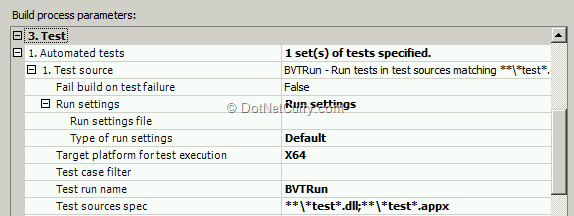
I added only the value to the parameter Test run name. I gave it a name BVTRun, a short form for Build Verification Tests Run.
Now I am ready to execute that build. I edited a small code snippet
under the project “SSGS Password Validator” and checked in that code.
The build triggered due to that check-in and completed the compilation
successfully as well as ran that test to verify the build. I have
validated that the Continuous Integration part of TFS is working
properly.
Microsoft included deployment workflow recently in the services offered by Team Foundation Server. That feature is called Release Management. It offers the following functionality:

To implement Release Management and tie it up with TFS 2013 Update 2, we have to install certain components:

You may find details of hardware and software prerequisites over here http://msdn.microsoft.com/en-us/library/dn593703.aspx. I will guide you now to install these components of Release Management and use them to configure releases.
Install and configure Release Management
Release Management components
1. Release Management Server 2013 – Stores all the data in a SQL
Server Database. Install this on any of the machines that is in the
network with TFS and with those machines where you want to deploy built
application. It can be installed on TFS machine itself.
2. Release Management Client 2013 – Used to configure the RM Server
and to trigger the releases manually when needed. Install this on your
machine. It can be also installed on TFS.
3. Microsoft Deployment Agent 2013 – These need to be installed on
machines where you want to deploy the components of the built
application
While installing these components, I provided the account credentials
which has administrative privileges in the domain so that it can do
automatic deployment on any of the machines in the domain. I suggest to
keep the Web Service Port as 1000 if it is not being used by any other
service.

In Addition to these components, if you need to execute automated
tests as part of your deployment process, then you also need to install
Test Controller and configure Lab Management.
Once the installation is over, let us do the setup of the release
management so that releases can be automated on that. Most important
part of that setup is to integrate TFS so that build and release can be
used hand in hand.
Initial Setup of Release Management
To configure the settings of Release Management, open the RM Client application and select Administration activity.
Let us first connect RM Client with RM Server. To do that, select
Settings. Enter the name of RM Server in the text box of Web Server
Name. Click OK to save the setting.

Now we will connect RM with our TFS. Click on the Manage TFS link.
Click the New button and enter the URL of TFS with Collection name.
Click OK to save the changes.

Next step is to add the names of supported stages of deployment and
technologies. Generally there are at the least two stages – Testing and
Production. Sometimes there are more stages like Performance Testing,
UAT etc. For specifying the stages of our releases, click the Manage
Pick Lists link and select Stages and enter stages like Development,
Testing and Production. Similarly select Technologies and enter the
names like ASP.NET, .NET Desktop Applications, WCF Services etc.
You can now add users who can have different roles in the Release
Management by clicking on Manage Users. You may add groups to represent
various roles and add users to those roles. These users will be useful
when you want to have manual intervention in the deployment process for
validation and authorization.
Each release follows a certain workflow. Path of that workflow needs
to be defined in advance. Let us now find out how to define that release
path.
Configure Release Management Paths
To start building the RM paths, we will need to register the building
blocks that are the servers on which the deployment will be done. To do
that, first click on the Configure Paths tab and then on the Servers
link. RM Client will automatically scan for all the machines in the
network that have the Microsoft Deployment Agent 2013 installed. Since
this is first time that we are on this tab, it will show the list as
Unregistered Servers.

You can now select the machines that are needed for deployment in
different stages and click on the Register button to register those
servers with RM Server.

Let us now create the environments for different Stages. Each
environment is a combination of various servers that run the application
for that stage. Let us first create a Testing environment made up of
two of the machines. One of them, an IIS Server that will host our
application when deployed, and another a SQL Server for deploying.
Provide the name of the Environment as Testing (although there
may be a stage with similar name, they are not automatically linked).
Link the required machines from the list of servers – select the server
and click on the link button.

You may create another environment named Production and select other servers for that environment.
Next step is to configure Release Paths that will be used by our
releases. These paths are going to use various entities that we have
created so far like the stage, environments and users if necessary.
Click on the Release Paths under Configure Paths activity. Select the
option to create new release path. Give it a Name, Normal Release and a
Description if you want. Under the stages tab, select the first stage
in our deployment process i.e. Testing. Under that stage, now select the
environment Testing that will be used to deploy the build for testing.

Set the other properties so that Acceptance and Validation Steps are
‘Automated’. Set the names of users for Approver for Acceptance step,
Validator and Approver for Approval step. Approver is the person who
decides when the deployment to next stage should take place. It is a
step where release management workflow depends upon manual intervention.
Click on the Add button under stages and add a stage of Production. Set properties similar to Testing stage.

Save and close the Release Path with a name for example I have named it as Normal Release.
Create Release Template
Now we will tie all ends to create a release template that will be
used to create multiple releases in the future. In each release in each
stage, we want to do deployment of components of our application, run
some tests either automatically or manually and finally approve the
deployment for next stage. Let us take an example where we will design a
release template that has following features:
1. It uses two stages – Testing and Production
2. In each stage, it deploys a web application on a web server and a database that is to be deployed on a database server.
3. It has to run an automated test on the web application after the
deployment on Testing environment. It may also allow tester to run some
manual tests.
4. It should have an approval from a test lead after testing is
successful for the application to be deployed on Production environment.
Set properties of Release Template
Release template is the entity where we will bring together the
Release Path, Team Project with the build that needs to be deployed and
the activities that need to be executed as part of the deployment on
each server. Release template can use many of the basic activities that
are built in and can also use many package tools to execute more complex
actions.
First select the Configure App activity and then from Release Template tab, select New to create a new release template.
As a first step, you will give template a name, optionally some
description and the release path that we have created in earlier
exercise. You can now set the build to be used. For that, you will have
to first select the team project that is to be used and then the build
definition name from the list of build definitions that exist in that
team project. You also have the option to trigger this release from the
build itself. Do not select this option right now. We will come back to
that exercise later.

Configure Activities on Servers for Each Stage
Since we have selected the configured path, you will see that the
stages from that path are automatically appearing as part of the
template. Select the Testing stage if it is not selected by default. On
the left side, you will see a toolbox. In that tool box there is a
Servers node. Right click on it and select and add necessary servers for
this stage. Select a database server and an IIS server.
Now we can design the workflow of deployment on the stage of Testing.
Configure IIS Server Deployment
As a first step, drag and drop IIS Server on the designer surface of the workflow.
We need to do three activities on this server. Copy the output of
build to a folder on IIS server, create an application pool for the
deployed application and then create an application that has the
physical location which is the copied folder and the application pool.
We will do the first step using a tool that is meant for XCOPY. For
that, right click on Components in the tool box and click Add. From the
drop down selection box, select the tool for XCOPY. In the properties of
that tool, as a source, provide the UNC path (share) of the shared
location where build was dropped. For example in my case it was \\SSGS-TFS2013\BuildDrops\TicketM,
the last being the name of the selected build definition. Close the
XCOPY tool. Drag and drop that from the component on to the IIS Server
in the designer. For the parameter installation path, provide the path
of folder where you want the built files to be dropped for example
C:\MyApps\HR App.
Now expand the node of IIS in the tool box. From there, drag and drop
the activity of Create Application Pool below the XCOPY tool on the IIS
Server in the designer surface. For this activity, provide the Name of
the Application Pool as HR App Pool. Provide the rest of the properties
as necessary for your application.
Next activity is the Create Web Application again from the IIS
group. Drag and drop that below the Create App Pool activity. Set
properties like physical folder, app pool that were created in earlier
steps.

Configure Database Deployment
Database deployment can be done with the help of a component that can
use SQL Server Database Tools (SSDT). We should have a SSDT project in
the solution that we have built. Support for SSDT is built in Visual
Studio 2013. We have to add a Database Project in the solution and add
the scripts for creation of database, stored procedures and other parts
of the database. When compiled, the SSDT creates a DACPAC – a database
installation and update package. That becomes the part of the build
drop.
Drag and drop the database server from the servers list in toolbox to
the designer surface. Position it below the IIS that was used in
earlier steps. Now add a component for DACPAC under the components node.
In that component set the properties of Database server name, database
name and name of the DACPAC package. Now drag and drop that component on
the database server on the designer.

This completes the deployment workflow design for the Testing stage and now we can save the release template that was created.
Starting a Release
Trigger release from RM Client
To start a release, you will select the activity of Releases. Click
the ‘New’ button to create a new release. Provide a name to the release.
Select the release template that you had created earlier. Set the
target stage as Testing since you have not yet configured the Production
stage. You can start the release from here after saving or you can
click Save and Close and then from the list of releases which includes
recently created release, you can select and start it.

Once you click on the Start button, you will have to provide path of
the build with the name of the latest build which is to be deployed.
After providing that information, you can now start the run of the new
release.

The RM Client will show you the status of various steps that are
being run on the servers configured for that release. It will do the
deployment on both the servers and validate the deployment
automatically.
Since we had configured the Testing stage to have approval at the
end, the release status will come to the activity of Approve Release and
wait. After testing is over, the test lead who is configured to give
approval, can open the RM Client and select the Approved button to
approve the release.
We have now configured Continuous Integration with the help of team
build and then configured continuous deployment with the help of release
management feature of TFS 2013. Let us now integrate both of these so
that automated deployment starts as soon as the build is over. To do
that, we need to configure the build to have appropriate activity that
triggers the release.
Trigger the release from Build
To trigger the release from Build, we need to use a special build
process template that has the activities related to triggering the
build. That process template is available when you install Release
Management Client on TFS Build Server (build service restart is needed).
It can also be downloaded from http://blogs.msdn.com/b/visualstudioalm/archive/2013/12/09/how-to-modify-the-build-process-template-to-use-the-option-trigger-release-from-build.aspx. After that, you will need to put it under the Build Templates folder of your source and check-in.
Once the special build process template is in place, you can start
the wizard for creating new build definition. Let the trigger be manual
but if you want to make it part of the Continuous Integration, then you
can change the trigger to that. In the build defaults, provide the
shared path like \\SSGS-TFS2013\BuildDrops.
If you do not have a share like that then you can create a folder and
share it for everyone. You should give write permission to that share
for the user that is the identity of build service.
Under the process node select the template
ReleaseTfvcTemplate.12.xaml. It adds some of the parameters under the
heading of Release. By default the parameter Release Build is set to
False. Change that to True. Set Configuration to Release as Any CPU and
Release Target Stage as Testing.

Under the Test section provide the Test Run Name as BVTRun

Save the build definition.
Open the RM Client and Create a new Release Template that is exactly
same as the one created earlier. In the properties, select the checkbox
of “Can Trigger a Release from a Build”. In each of the components used
under the source tab, select the radio button of Builds with application
and in the textbox of the Path to package, enter \ character.
Now you can trigger the build and watch the build succeed. If you go
to the Release Management Client after the build is successfully over,
you will find that a new release has taken place.
We may also need to run some automated tests as part of the release.
For that we need to configure release environment that has automated
tests that run on the lab environment. So it is actually a combination
of lab and release environment that helped us to run automated tests as
part of the release.
Automated testing as part of the release
Automated testing can be controlled from Lab Management only. For
this, it is necessary that we have a test case with associated
automation that runs in an environment in Lab Management. The same
machines that is used to create Release Management environment can be
used to create the required Lab Environment.
Create Lab Environment for Automated Testing
For this we will create a Standard Environment containing the same
machines that were included in the Testing environment. Name that
environment as RMTesting
Before the environment is created, ensure that Test Controller is
installed either on TFS or other machine in the network and is
configured to connect to the same TPC that we are using in our lab.
While adding the machines to Lab Environment if those machines do not
have Test Agent installed, then it will be installed.
Create and configure Test Case to Run Automatically
Open Visual Studio 2013 and then open Team Explorer – Source Control
tab. Create a new Unit Test for that method by adding a new Test project
to the same solution. Check-in both the projects.
In the Testing Center of the MTM 2013, add a Test Plan if it does not
exist. Create a new Test Suite named BVTests under that test plan. Open
the properties page of the selected test plan and assign the created
environment to that test plan.
Create a test case from Organize Activity – Test Case Manager. There
is no need to add steps to the test case as we will run this test case
automatically. Click on the tab of Associate Automation. Click
the button to select automated test to associate. From the list
presented to us, select the unit test that you had created in earlier
steps. Save test case. Add that test case to a test suite named BVTests.
Add Component to Release Management Plan to Run Automated Test
In the RM Client, open the Release Template that was used in the
earlier exercise to trigger the release from build. Add a new component
and Name it as Automated Tester. Under the Deployment tab of that
component, select the tool MTM Automated Tests Manager. Let the other
parameters as they are. Save and close the component. Drag and drop that
component from toolbox on the designer. It should be on the IIS server
below all the deployment activities. Open that component and set the
properties as shown below. Test Run name is what you have provided in
the build definition.

Now you can trigger the build again. After the build, the release is
triggered. During the release after the deployment is over, automated
test will be run and the run results will be available in MTM 2013.
Summary
Today, teams are becoming more and more agile. It is necessary for
them to be agile with the demonstrable application at any time. To
support that, the practices of Continuous Integration and Continuous
Deployment have become very important factors in all the practices. In
this article, we have seen how Team Foundation Server 2013 with the
component of Release Management helps us to implement Continuous
Integration and Continuous Deployment.
